为了避免以后产生不必要的误会,请详细阅读以下的用户申明:
1) 货运保险
我们的保险是 “保丢不保坏”, 也就是说如果货物入仓之后丢失,我们会做出赔偿;如果货物损坏的话,就没有赔偿。
建议让供应商把货物包装做好,以避免货物损坏,贵重货品建议打上木箱等坚固防护。
* 保险最高赔偿金额是 “运费的十倍”
例如 : 这批货物总共 3 个立方,就是运费 RM390 x 3 = RM1,170
最高赔偿金额就是 RM1,170 x 10 = RM11,700
* 客户必须出示购买证明,和汇款证明
* 保险不包括以下情况
– 天灾
– 海关抽样检查
2)小包裹计算方式
广州 (GZ)
0.1cbm- RM75
0.2cbm- RM105
>0.3cbm- RM390/cbm
义乌(YY)
0.1cbm- RM85
0.2cbm- RM115
>0.3cbm- RM430/cbm
0.0 – 0.1cbm之间都算作是0.1cbm
0.1cbm – 0.2cbm之间都算作是0.2cbm
0.2cbm – 0.3cbm之间都算作是0.3cbm
货物超过0.3cbm按照实际测量大小来计算
* 以上计量方式只限于西马地区
* 东马一律以最低 0.3 cbm 开始起跳
* outskirt 地区会另加收费
3)集运服务
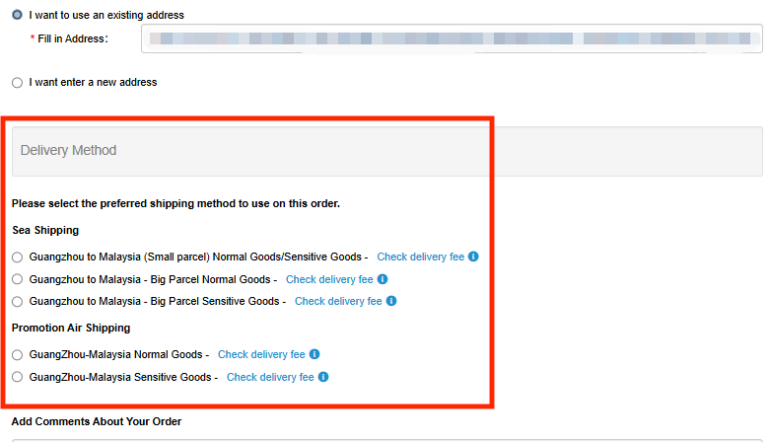
本公司专业处理商业货物,并没有提供集运服务,我们一收到货物马上装柜,最低收费以装柜的货物计算,如果在不一样的日期的货物进仓的话,我们无法合并在一起计算
4)供应商有义务把货物发到本公司的中国仓库,我们并没有提供提货服务,如果供应商无法跟着我们的流程贴上 QR 唛头,和提供货物清单,而产生的一切物流额外费用,一律和本公司无关
5)本公司只负责把货物送到客户地址的底层,不包送上楼,如果需要送上楼的服务必须要付额外搬运费给司机,搬运费的金额需要客户自己和司机协商
—————————————————————————————————————————
To avoid any misunderstandings in the future, please read the following statement:
1) Cargo Insurance
Our insurance covers only [lost cargo] cases. This indicates that we will only compensate for those goods which went missing from our warehouse, BUT not for damaged goods.
It is recommended to request your suppliers for well-packaging manners to prevent goods from damage.
If you are delivering fragile or valuable goods, you are recommended to use wooden or any sturdy cuboid to cover up the goods.
*The highest compensation amount is “10 times of the delivery fees”
For example, The total CBM of goods is 3, and the delivery fees will be
RM390 x 3 = RM1,170
Thus, the compensation will be RM1,170 x 10 = RM11,700
* Customer must present proof of purchase and proof of remittance
* Insurance does not include the following:
– Natural disaster
– Customs sampling inspection
2)Small Package Calculation Method
GuangZhou (GZ)
0.1cbm- RM75
0.2cbm- RM105
>0.3cbm- RM390/cbm
YiWu(YY)
0.1cbm- RM85
0.2cbm- RM115
>0.3cbm- RM430/cbm
Between 0.0 – 0.1cbm = 0.1cbm
Between 0.1cbm – 0.2cbm = 0.2cbm
Between 0.2cbm – 0.3cbm = 0.3cbm
For item that exceeds 0.3cbm will be measured based on standard measuring condition.
* The above measurement methods are limited to West Malaysia
* East Malaysia always starts with a minimum of 0.3 CBM
* Outskirt area will be charged extra
3) Combination of Goods & Services
We do not provide goods combination service. We will shift your goods into the container right after your goods have arrived at our warehouse.
However, if all your goods are to arrive on the same day, we will deliver all of them on the same day as well.
The minimum charge is calculated based on the goods loaded in the container. If the goods enter the warehouse on different dates, we cannot calculate them together.
4) Your supplier is responsible to send the goods to our Chinese warehouse. We do not provide pick-up service.
If the supplier cannot follow the process such as paste the QR (Register Marking Number) on the goods or not provide the goods list, extra costs incurred have nothing to do with us.
5) We are responsible for delivering your goods to your doorstep (ground floor) but not including upstairs.
If you need to send your goods to the upstairs, you must pay an additional transportation fee to the driver. The amount of the transportation fee you can negotiate with the driver.
Accept